
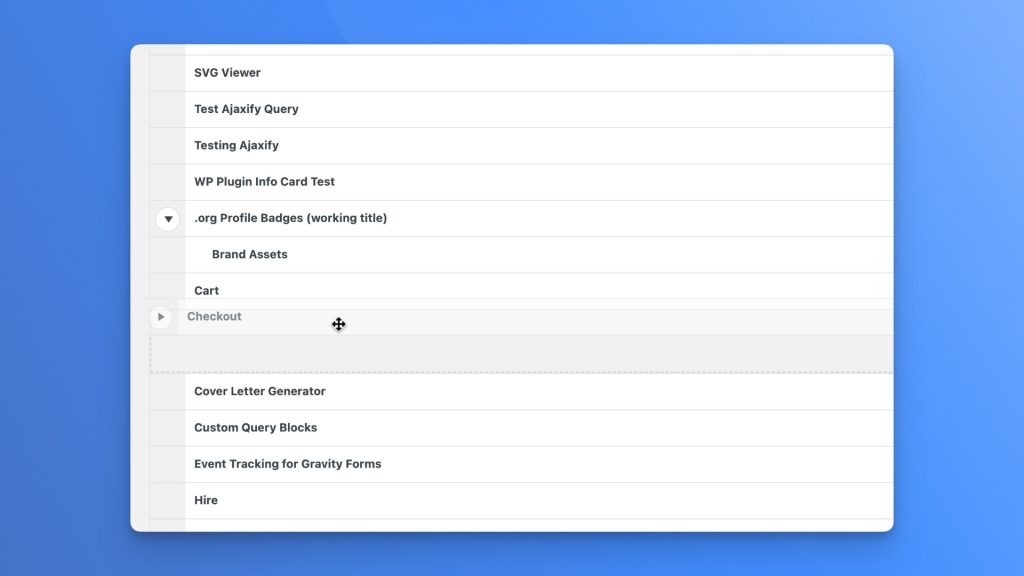
WordPress sorts posts by date out of the box, which is fine for a blog and wrong the moment you build a docs tree, a course outline, or a landing page directory. Reorder Posts gives every enabled post type a drag-and-drop list that writes straight to WordPress’s built-in menu_order column, and leaves your front-end queries alone until you ask for that order.
10,000+
3.9/5
7.1
| Plugin details | |
|---|---|
| Version | 2.6.2 |
| Requires WordPress | 6.5 or newer |
| Tested up to | 7.1 |
| Requires PHP | 7.4 or newer |
| License | GPL-2.0-or-later |
Excellent zero bluff plugin for creating custom order
Thank you very much for this. The use case fits perfectly for developers indeed. It doesn’t pollute the front-end’s default view and only works when specified within custom queries. Exactly what I needed.
How it works
Drag from the grip, and let go
Open Posts → Reorder or Pages → Reorder. Grab the dotted handle on the left of a row and drop it where you want it. There is no Save button. The plugin writes the new position to WordPress’s menu_order column as soon as you let go. The title itself stays plain text so you can select it or scroll on a tablet without moving a post by accident.
Nest pages and pick your post types
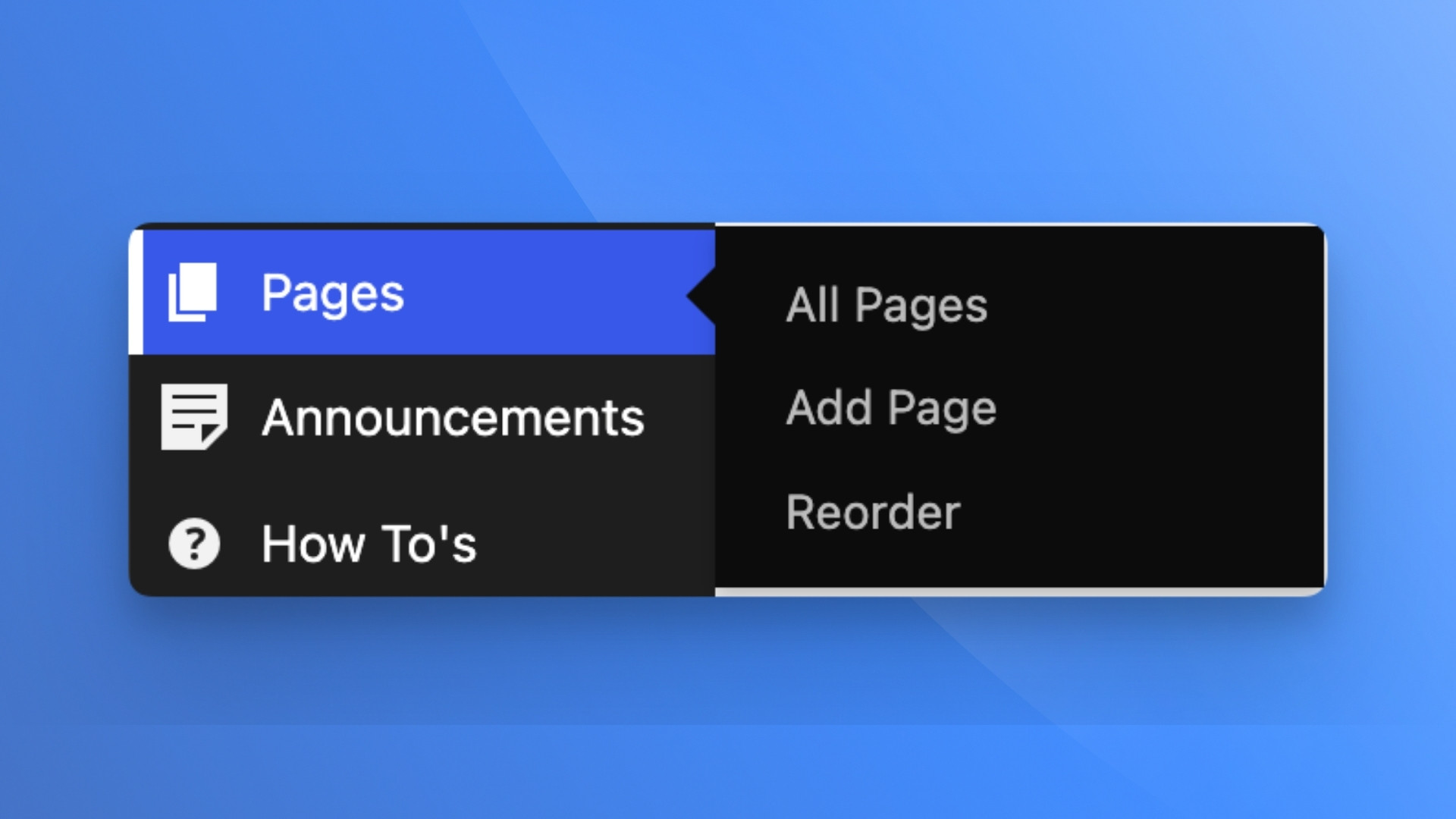
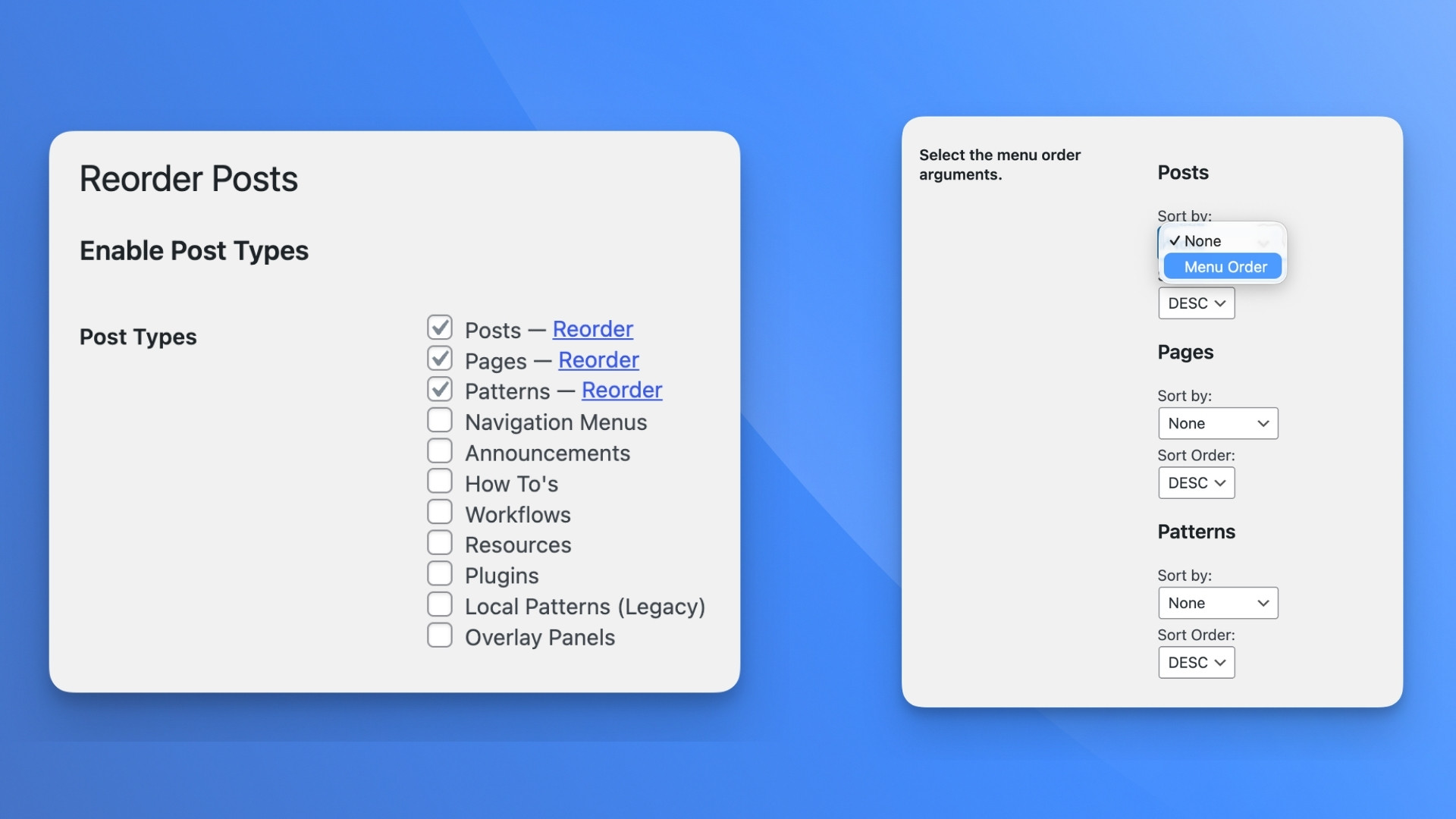
Posts and Pages start enabled. Under Settings → Reorder Posts you can turn on any custom post type, and even hidden post types without a sidebar menu get a direct Reorder shortcut link on that settings row. On hierarchical types like Pages, click the arrow beside a parent to open its children, or drag a row sideways to change its parent on the spot.
Show the saved order when you are ready
Dragging in the admin saves the order without touching your live site. When you want a list on the front end to follow that order, turn on Custom Order in the Query Loop block, pass 'orderby' => 'menu_order' and 'order' => 'ASC' in WP_Query, or switch that post type to Menu Order under the Advanced tab in Settings → Reorder Posts.
What people wrote
Excellent plugin
This is the best post order plugin available – supports hirarchical CPTs, supports children, saves the order on ajax without the need to click a button, has no bloat, simply perfect!
Lifesaver!
This plugin was a complete lifesaver for me when I had to clean up and re-organize the content and navigation on a pre-existing website ported from Drupal that had hundreds of pages spread across multiple levels. Also works great with WP Show Posts and Events Manager plugins to display events in proper chronological event date order.
Simple and functional – does what it says.
Needed a simple way of reordering posts within a CPT for a customer. Could have built it myself, but thought I’d have a quick look around to see if there was a good solution out there. The interface is well thought and easy to use, both for myself and a less technical user. Reorder Posts is well commented, uses extendable classes, which are sensibly named and has high quality, standard compliant code. Would recommend.
Free on WordPress.org
Drag a list into order, then turn on Menu Order for the query that needs it. WordPress 6.5 or higher, PHP 7.4 or higher. The current release is 2.6.2.
Why I adopted this and plan to grow it
Adopted from Ronald Huereca
Ryan Hellyer, Ronald Huereca, and Scott Basgaard built a clean foundation on top of WordPress’s native menu_order column. When I adopted the plugin from Ronald, I kept that core intact so the 10,000+ sites already using it never have to migrate data or rewrite their queries.
Solving the whole reordering problem
Most ordering plugins stop after the drag in wp-admin and leave you guessing why your public page still sorts by date. WordPress needs reordering that covers the whole job: dragging posts, nesting pages, ordering terms, and connecting that saved order to the block editor and front-end queries.
A utility that belongs for free
Putting posts, pages, and custom post types in order is a basic WordPress job. You should not have to dodge upsell banners or pay a yearly subscription to set menu_order. Reorder Posts and its companion add-ons stay free on WordPress.org.
How I think plugins should be run
I advise product teams on building and supporting WordPress plugins, and this is where I practice it in public. Real documentation written from actual support threads, safe defaults that never break a live site on activation, and steady improvements driven by the people using it.
Questions
The reorder screen saves the order to menu_order, and the public blog still sorts by publish date until a query asks for menu order. In a Query Loop block, turn off “Inherit query from template” and switch on Custom Order in the Reorder panel. For the main blog or a post type archive, go to Settings → Reorder Posts → Advanced and set Sort by to Menu Order and Sort Order to ASC. The front-end guide walks through all three ways.
I dragged my posts, so why is my site still showing newest first?
There isn’t one. As soon as you drop a row, the plugin writes the new position and renumbers the surrounding items in the background. Wait for the inline spinner to finish before paging away.
Where is the Save button?
Go to Settings → Reorder Posts, check the post type under Enable Post Types, and save. A Reorder submenu appears under that post type in the admin sidebar, plus a direct Reorder shortcut next to the checkbox for types that do not have their own menu. See Reorder a custom post type.
How do I reorder a custom post type?
Yes. On Pages → Reorder (or any hierarchical post type), click the arrow next to a parent item to reveal its children. Drag up and down to change the order, or drag sideways under another row to nest it as a child. Reorder pages covers the details.
Can I reorder child pages and change a page’s parent?
Not with Reorder Posts alone, because WordPress only stores one menu_order number per post. Install the free Reorder by Term add-on when a post needs a different position in each category, or Reorder Terms when you want to reorder the categories and tags themselves. See Companion plugins.
Can I order posts differently inside each category?
Screen Options at the top of the reorder screen sets Items per Page (50 by default). From page two onward, two rows repeat across the page break so you can drag an item across pages. For post types with more than 1,000 published items, the screen shows a performance warning. Read Reorder a long list for tips.
How does it handle long lists?
Your saved menu_order numbers and page parents stay in the WordPress database. Any query that already sorts by menu_order keeps working.
What happens if I deactivate the plugin?
Keep going
Support
Bug, setup question, or a query that is ignoring your saved order. The forum is the place.
Documentation
Fourteen guides covering first-time setup, front-end queries, nested pages, custom post types, hooks, and the companion plugins.
Feedback
I read the discussion board. A bug, a setup that did not work, or an idea you want in the plugin.